Trim a video
Keep one useful section. Preview the video, set the start and end, and save a new clip.
Read the guide →FREE VIDEO CUTTER JOINER · 8.1.0
Trim away unwanted footage, save your favorite sections, or combine several clips. Choose an output format and process your video on your Windows PC, without a forced watermark.
Setup offers optional third-party software. You may decline it and continue installing the video editor. Download and installation details
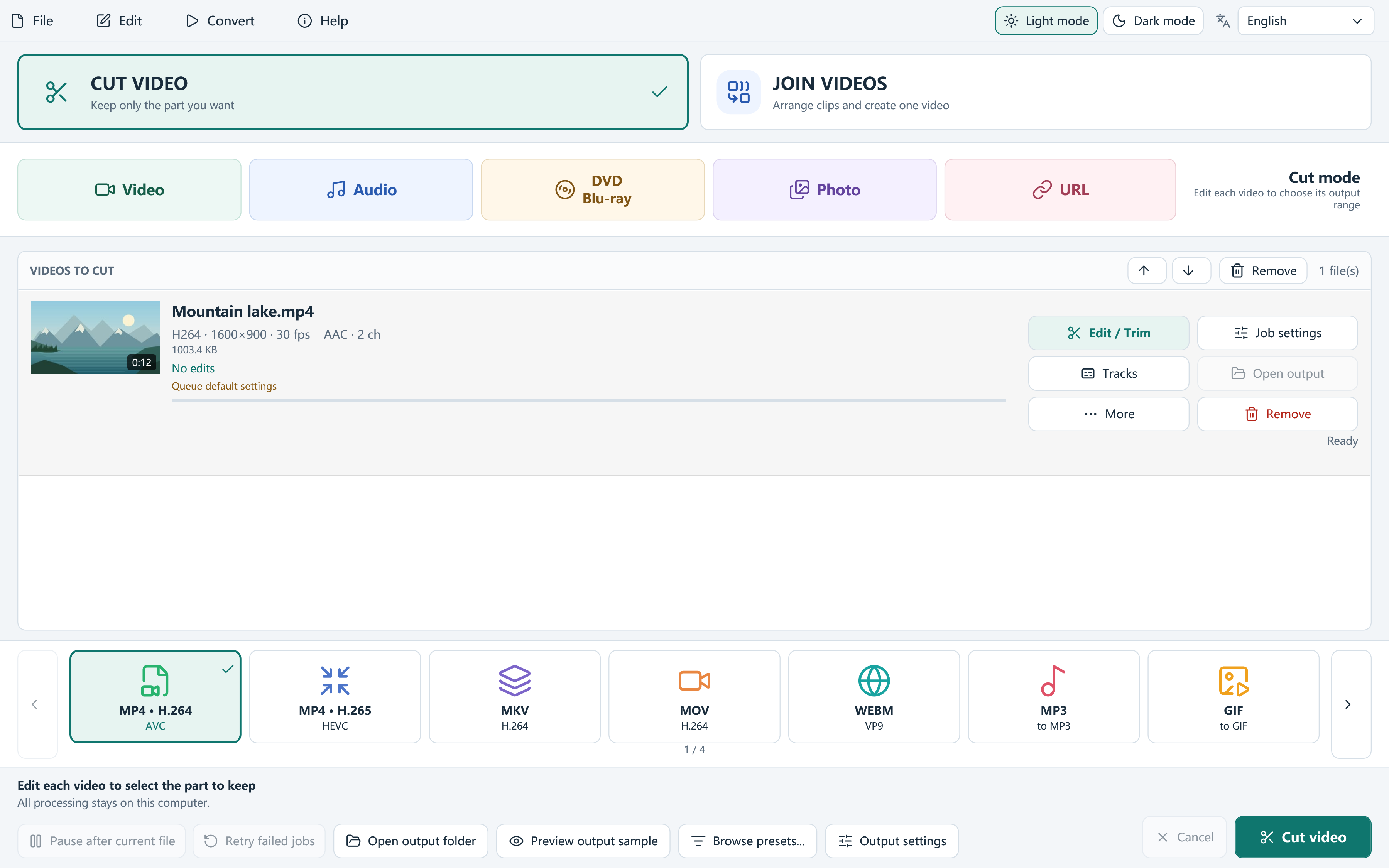
Start with your goal. Two clear modes keep the next step simple.
Keep one useful section. Preview the video, set the start and end, and save a new clip.
Read the guide →Add multiple keep ranges and export them as separate clips in Cut mode.
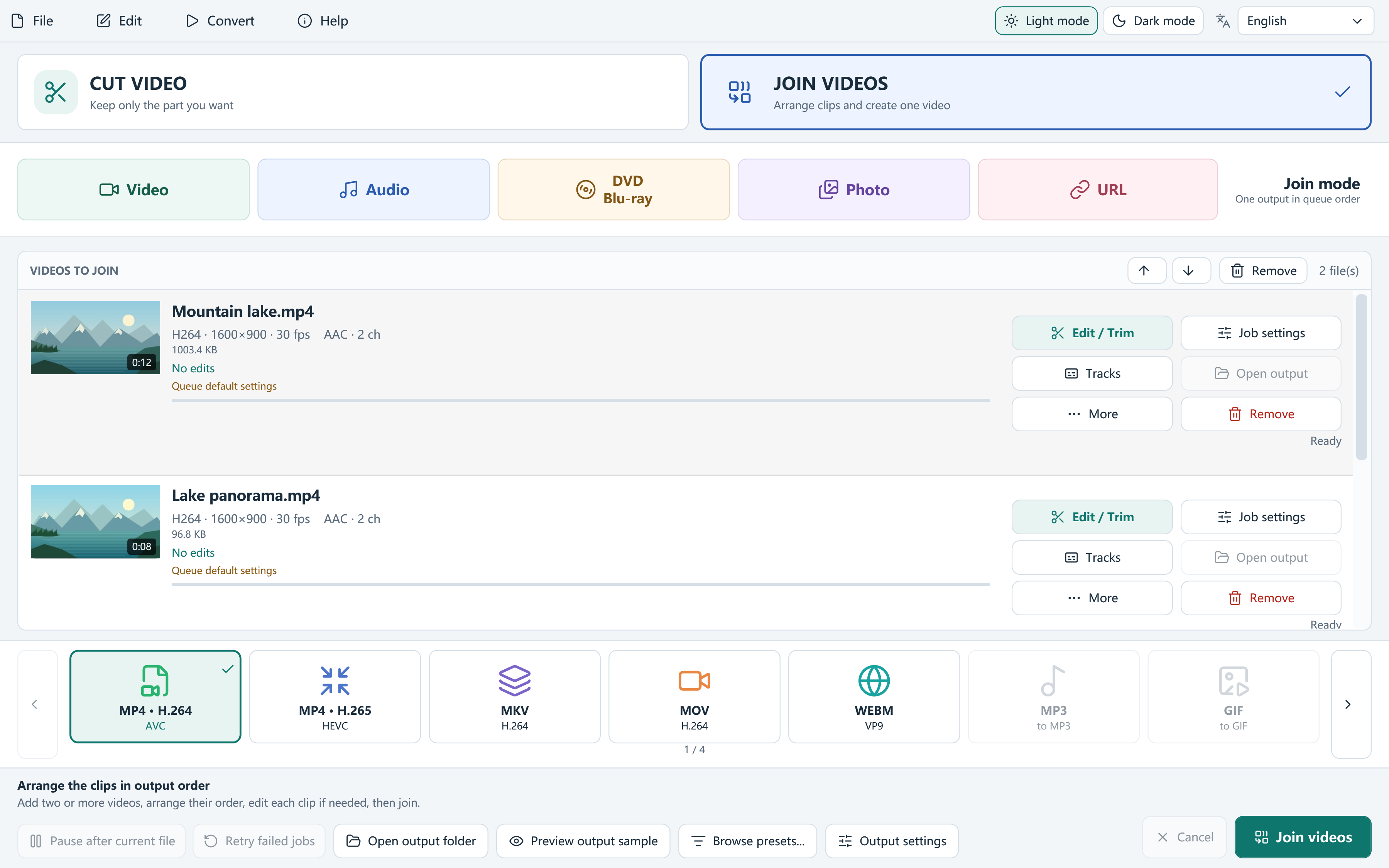
Read the guide →Add at least two videos, arrange them in order, and export one combined video.
Read the guide →Choose Cut Video for individual clips or Join Videos for a combined result. Your originals stay in place.
Preview and trim each clip. Reorder the queue for joining, and add crop, subtitles or an image watermark if needed.
Choose MP4 or another output preset, select your output folder, then start the job. Review the finished video before sharing.
A focused cutting and joining workflow, backed by practical editing and conversion tools.
Use timeline handles, precise time entry and frame-step controls. Split a range, keep the inverse selection, or reorder your selected segments.
Auto can copy compatible MP4, MOV or MKV streams. Mixed clips or edited clips use encoding; Lossless only explains when stream copying is unavailable.
Frame your video for 16:9, square or portrait output. Rotate, flip, adjust color and apply picture filters before export.
Choose audio tracks and volume, normalize loudness, add subtitle files, or place a PNG logo. No watermark is added unless you choose one.
Save .fvcjproject files, recover interrupted work, reuse presets and inspect failed-job logs. Preview an encoded sample before a longer conversion.
Add a supported public video URL and choose its input quality. Download begins when processing starts. Additional tools create DVD/Blu-ray folders and ISO images.
Open the details when you need more than a simple cut or join. These tools use the same local processing and output workflow.
Edit subtitle text, timing and style. Open SRT, ASS or SSA files and save SRT or ASS. For conversion, SRT, ASS, SSA and VTT can be embedded in compatible outputs or burned into the picture. External editable subtitle files cannot be joined directly; prepare the clips first or burn the subtitles.
Save compatible audio or subtitle streams from a video, or capture a still frame for another use. Review which stream you select when a file contains several languages or tracks.
Select tracks and their language or title metadata. Adjust gain, reduce steady noise, apply voice compression, or normalize loudness to -16 LUFS. Review the result with sound, especially across joined clips.
Reuse custom presets and per-job output settings for separate exports. Pause after the current file, retry failed jobs, inspect history and export it as CSV. A watch-folder workflow helps with repeated processing; an encoded sample preview helps check settings before a longer job.
Choose quality, average bitrate or a target file size, and review resolution and frame rate. Available NVIDIA NVENC, Intel Quick Sync and AMD AMF profiles depend on your GPU, driver, codec and settings. Target size is a practical target, not a guarantee of an exact byte count.
Paste a supported public video link, select Read formats, and keep Best available or choose an offered source format. Add the link first; its media downloads when processing starts. The final output remains the main-window choice. Help and failed-download prompts provide download-module update checks.
Create a DVD VIDEO_TS folder or ISO with an interactive menu. Create a Blu-ray BDMV folder or UDF 2.50 ISO with an ordered playlist and chapters; interactive Blu-ray menus are not provided. The Burn ISO action opens the Windows workflow and needs suitable hardware and media.
Save your queue, mode, edits and output settings in a .fvcjproject file, keeping the referenced sources available. Resume recoverable work, choose light or dark appearance, and use English, Simplified or Traditional Chinese, Spanish, Brazilian Portuguese, German, French, Japanese, Korean or Russian interfaces.
Start with MP4 H.264 for broad compatibility. Choose H.265/HEVC, AV1, MKV, MOV or WebM when your player supports them. Device presets, audio export and quality/size controls cover other delivery needs. Available options depend on the selected mode and format.
English screenshots from version 8.1.0. Click an image to view its full-resolution original.
Download Free Video Cutter Joiner 8.1.0 for Windows 10 (version 2004 or later) and Windows 11, 64-bit.
Setup offers optional third-party software. You may decline it and continue installing the video editor. Download and installation details
Cut an MP4 to the section you need on Windows 11. Choose exact start and end points, keep several segments, and export without an added watermark.
Join videos with different formats, dimensions or frame rates on Windows. Plan a consistent encoded output and check audio at each boundary.
Keep useful sections and leave pauses or mistakes out. Export separate clips in Cut mode, then join at least two clips when you need one continuous video.
No forced watermark is added to your export. If you want your own branding, you can add a PNG image watermark in the editor.
Yes, when MP4, MOV or MKV streams and track layouts are compatible and no editing requires encoding. Auto checks compatibility; mixed formats, trimming and picture edits use encoded output. Lossless only refuses an incompatible job.
Cut mode exports the selected sections as separate files. Join mode combines queue items and their kept sections in order, and requires at least two video items in the queue.
No. Editing and conversion of local media run on your PC. Online video lookup, downloads and update checks use the network. The separate optional RelevantKnowledge offer has its own privacy terms.
