Choose the result before you cut
An MP4 extension identifies the container, not the video codec inside it. A file can contain H.264, H.265 or another codec, together with one or more audio tracks. For a widely playable result, an MP4 output using H.264 is a practical starting point. Choose a different preset when the receiving device or project requires it.
Trimming to a particular frame normally uses encoding in version 8.1.0. The program does not provide the old standalone Smart Cut switch. Do not expect every precise edit to copy the original compressed video unchanged.
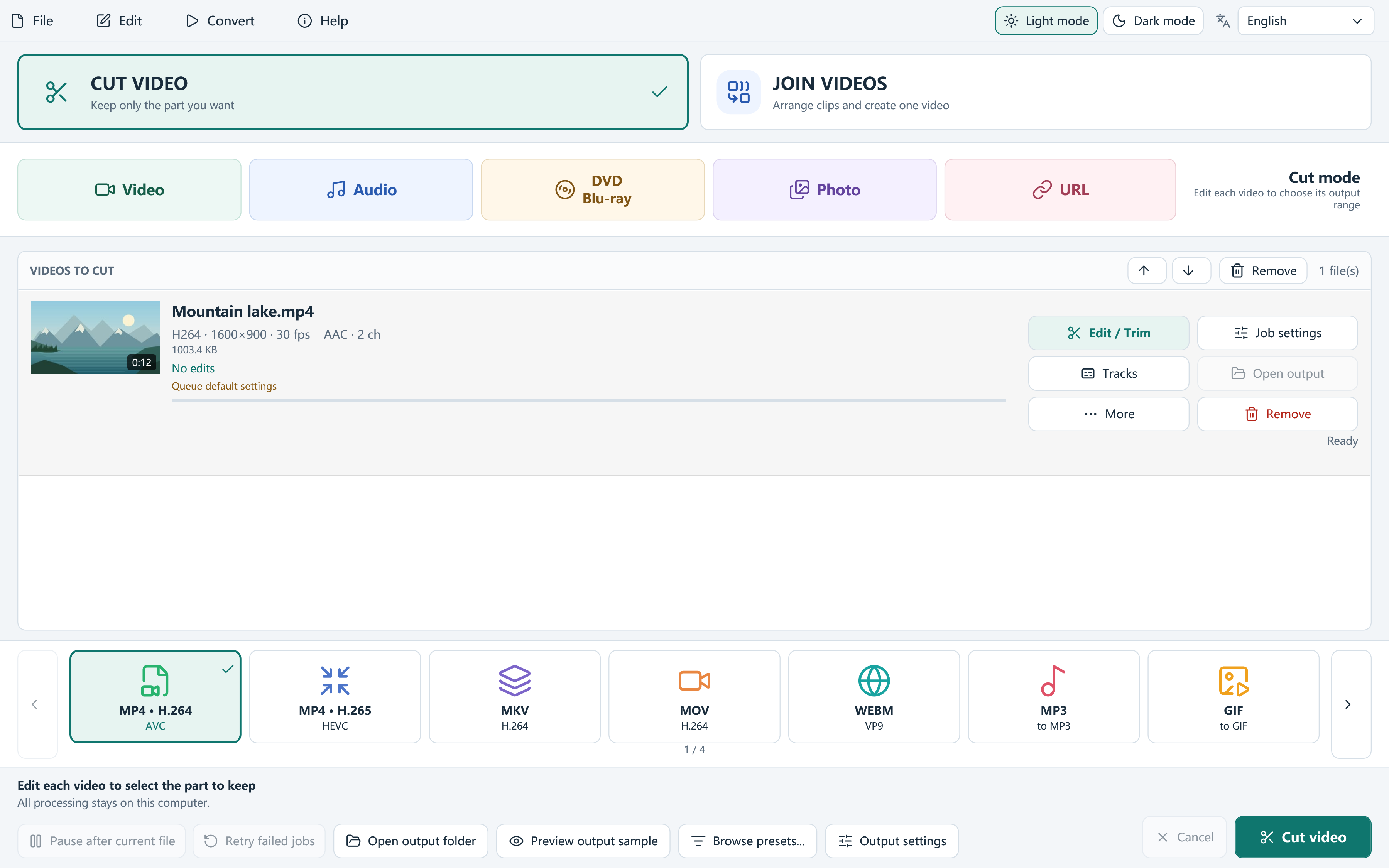
Cut one MP4 in a few steps
Keep the original file until you have reviewed the export. Work to a separate output folder when the source is valuable or shared with other people.
- Choose Cut video and add your MP4. Adding one local video in Cut mode opens the editor.
- Move the playhead to the first picture you want to keep. Use the frame-step controls for a closer check, then set the start point.
- Set the end point. Play around both boundaries and check the time fields before applying the cut.
- Choose the output preset in the main window. Review output settings, select a destination, and start processing.
- Open the finished file and check the first frame, final frame, audio, and duration.
Keep more than one useful section
Use the editor's keep-segment list when you want several moments from the same recording. Add each range you want to retain, then review its order. In Cut mode, each kept range is exported as its own file, making it useful for creating a collection of short excerpts.
If you need those excerpts in one continuous video, add the exported clips to Join mode and arrange at least two queue items in the intended order. Check complete words and comfortable pauses at the boundaries. Save a project when you expect to revise the selection later.
Set quality and compatibility deliberately
Keep the source dimensions and frame rate when there is no reason to change them. Upscaling does not restore missing detail. If an export needs a smaller file, adjust the quality or bitrate while checking a representative sample instead of repeatedly compressing a previous export.
Select the intended audio track before processing. If the source has multiple languages or subtitles, verify which streams the output preset can preserve. A file that plays on your editing PC may still need a more compatible codec for another device.
If the result is not what you expected
If playback fails, first try a standard MP4/H.264 output rather than assuming the source extension is the problem. If audio is missing, check track selection and the chosen output. If a job fails, use its diagnostic log to identify the actual failure before changing several settings at once.
Cutting local MP4 files does not require uploading the video. The application processes media on your PC, and it does not add a mandatory product watermark to the export.
Questions, answered
Does cutting an MP4 always preserve the original compressed picture?
No. Exact trims and picture edits generally encode a new output. Keeping good source quality is different from copying the compressed stream without any change.
Can I cut several sections from one MP4?
Yes. Add the sections you want to keep to the segment list, check their order, and review the result before discarding the source.
