Start with the order of the story
MP4 files can contain different codecs, frame sizes, frame rates and audio arrangements. Sharing the .mp4 extension does not make two videos ready for a lossless join. Decide whether your priority is preserving compatible existing streams or producing one consistent output from varied sources.
For a normal mixed project, an encoded MP4/H.264 output is a practical starting point. Use dimensions and a frame rate that suit the material and the place where the result will be watched.
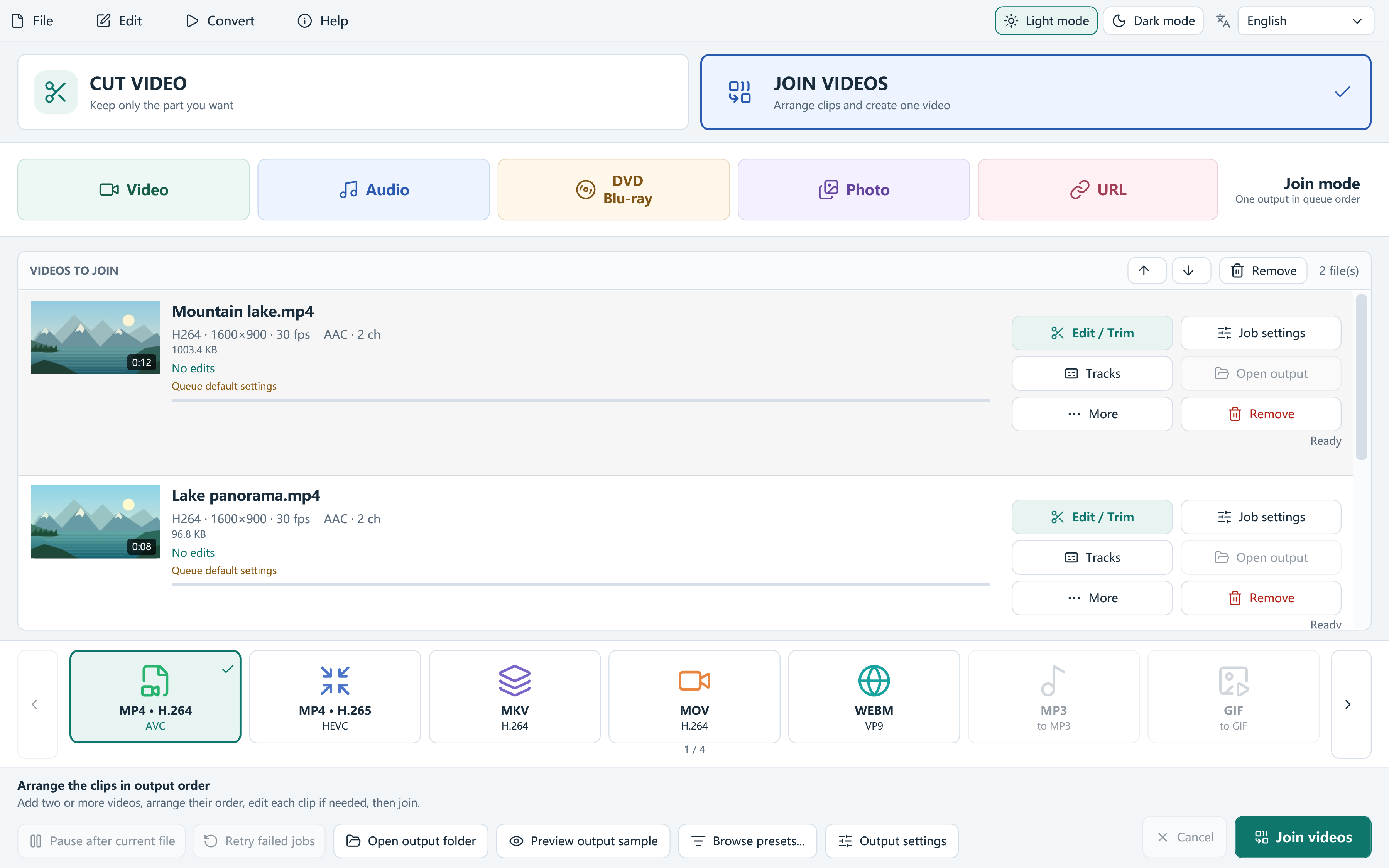
Join your clips
Choose Join videos before adding the sources. The mode remains selected while you build the queue; a single source is a prompt to add another video, not a finished join.
- Add at least two video files in Join mode.
- Move files up or down in the queue until they match the intended playback order.
- Open Edit / Trim for any source that needs a shorter start, a cleaner ending, or several keep segments. Apply those edits before the join.
- Choose the final output preset in the main window and review its settings. Use an encoded strategy when sources or edits require it.
- Start processing, then watch every boundary in the finished file with audio enabled.
When compatible lossless joining fits
A lossless join copies suitable existing streams rather than encoding a new picture. This workflow requires an MP4, MOV or MKV output and matching source codec, dimensions, frame rate, HDR and track characteristics. Resolution and frame rate must remain the same as the sources. Input extensions alone do not decide eligibility.
Trims and multiple keep segments, crop, filters, audio processing, a watermark, burned subtitles, or source chapter timelines require encoded joining. If you choose Lossless only and the application rejects the job, use the explanation to correct the workflow rather than treating it as an arbitrary error.
When an encoded join is the better choice
Encoding can create a consistent result from clips that differ in size, frame rate or codec. It is also the appropriate route when you edit the pictures. Set the output canvas deliberately so that a portrait clip or a smaller source is not unexpectedly stretched or enlarged.
The output is newly encoded, so file size and visible quality depend on your chosen settings. A large input collection does not require an equally large export, but lowering bitrate or resolution too far can remove useful detail.
Check audio and subtitles across the whole result
Inspect the selected audio for each source rather than assuming every file uses the same track number or language. Listen immediately before and after a boundary for missing sound, abrupt volume changes or sync problems.
Subtitles need the same care. A selectable subtitle track and text burned into the picture are different outputs, and the receiving player and container must support your choice. Review the complete result in the player you intend to use before deleting any input.
Questions, answered
Can I merge MP4 files with different resolutions?
Yes, with an appropriate encoded output that normalizes the project. Different resolutions are not a suitable basis for an unchanged-stream lossless join.
Can I trim individual MP4 clips before joining?
Yes. Edit each queue item before joining; those edits may require an encoded result.
