Think about what to keep
A keep segment is a start and end point for content that belongs in an export. To leave a section out, retain the useful material before and after it. Cut mode produces separate files for those ranges; it does not automatically stitch one source's retained sections into one file.
Write down important moments before editing a long recording. This makes it easier to distinguish a deliberate deletion from a missed section. Keep the original video until the complete export has been watched and approved.
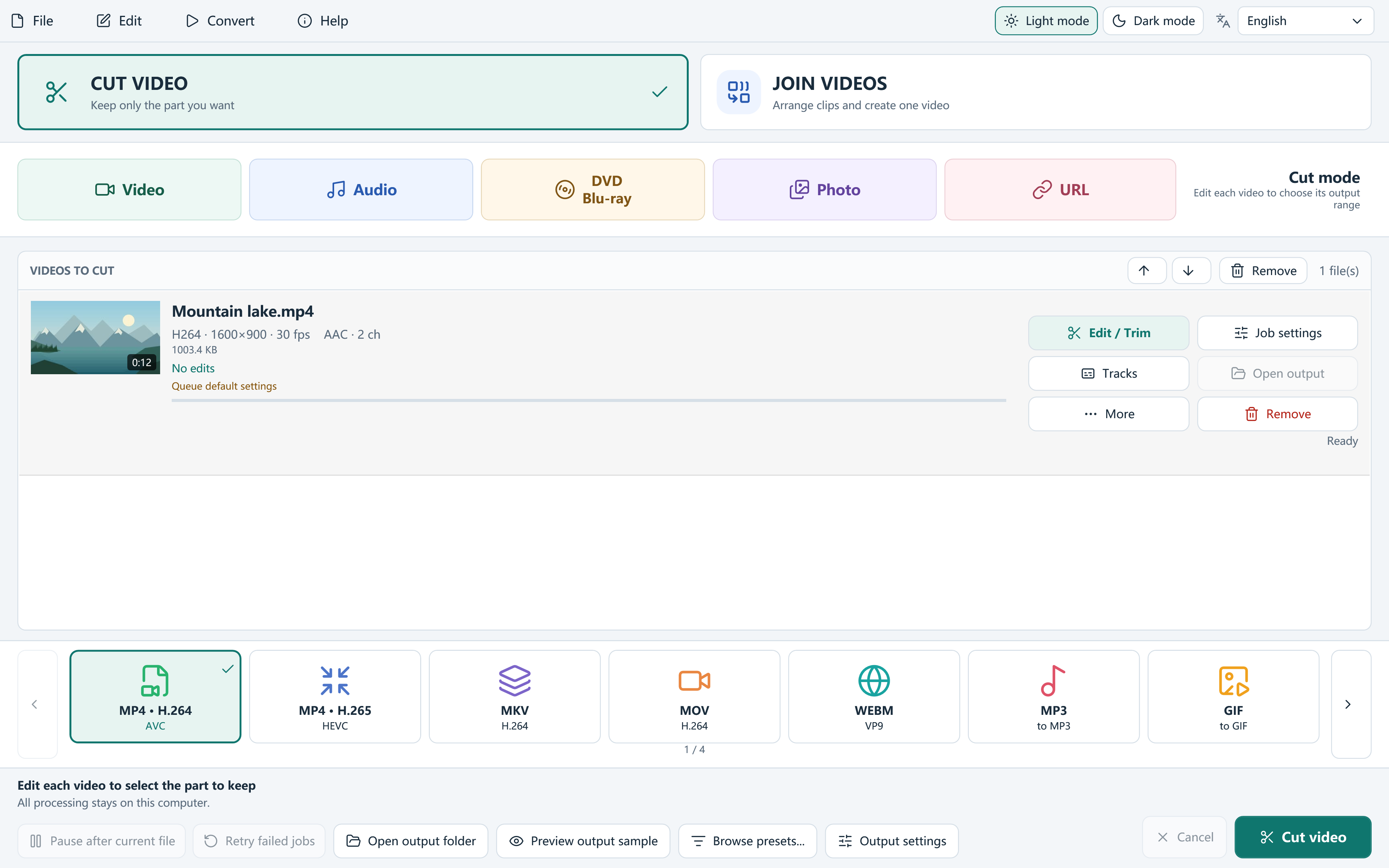
Build a keep-segment list
Use Cut mode to define useful sections from one recording. The editor lets you set boundaries, add ranges, split at the playhead, invert the kept selection, and move entries in the segment list.
- Choose Cut video, add the recording, and open Edit / Trim if it is not already open.
- Set the start and end of the first section you want to retain, then add that range to the keep-segment list.
- Repeat for the other useful sections. Check every start and end time rather than relying only on the thumbnail.
- Review the list in export order. Move a range up or down when you deliberately want a different sequence; delete an unwanted entry.
- Apply the edit, choose the output in the main window, and start Cut-mode processing to export the retained ranges as separate files.
Make the joins comfortable to watch and hear
Leave enough context for each retained action. Removing every pause can make a tutorial harder to follow even when it becomes shorter. In an interview or presentation, check that a sentence remains complete and that the speaker's meaning has not changed.
Listen through each clip's beginning and end. A picture cut can still interrupt a consonant, a breath or a musical beat. Frame-step controls help place the visual boundary, while normal playback helps judge what the viewer will hear.
Choose the right source and output workflow
For one continuous result, add the exported clips to Join videos and arrange at least two queued items in order. Alternatively, a Join project with at least two source items can use the selected ranges within each item; processing follows both queue order and each item's range order.
Exact multi-segment edits normally produce an encoded output in version 8.1.0. Do not look for an old Smart Cut switch, and do not assume that selecting a familiar container makes an edited export lossless. Choose the codec, quality and dimensions for the intended viewer.
Save a revision you can come back to
Save a .fvcjproject when the selection matters or when another revision is likely. A project records the editing choices; it does not turn the source recordings into a self-contained video archive. Keep the referenced media available in its expected location.
After exporting clips, check each retained range. If you then join them, watch the complete result and listen across every boundary. For private material, inspect surrounding audio, subtitles and individual frames so that unwanted information has actually been left out.
Questions, answered
Can I remove the middle and get one continuous file in one Cut operation?
Cut mode exports the retained ranges separately. For one continuous result, add those clips to Join mode with at least two queue items, arrange them, and join them.
Can I rearrange retained sections?
Yes. Use the segment list controls to move a retained range up or down, then check the resulting sequence.
