Mark the two parts to keep
For a one-minute recording with an unwanted pause from 00:20 to 00:35, keep 00:00–00:20 and 00:35–01:00. In Cut Video, add the source and set each keep range in the timeline. Play the ends of both selections to avoid cutting a word. If an exact boundary matters, use encoded output so the cut can start on the selected frame.
Save the two clips
Choose MP4 and a destination folder, then run Cut Video. The selected ranges are saved as separate clips. Open the output folder and identify the first and second clips by their content. Use matching output settings for both to make the later join easier.
Join the clips in order
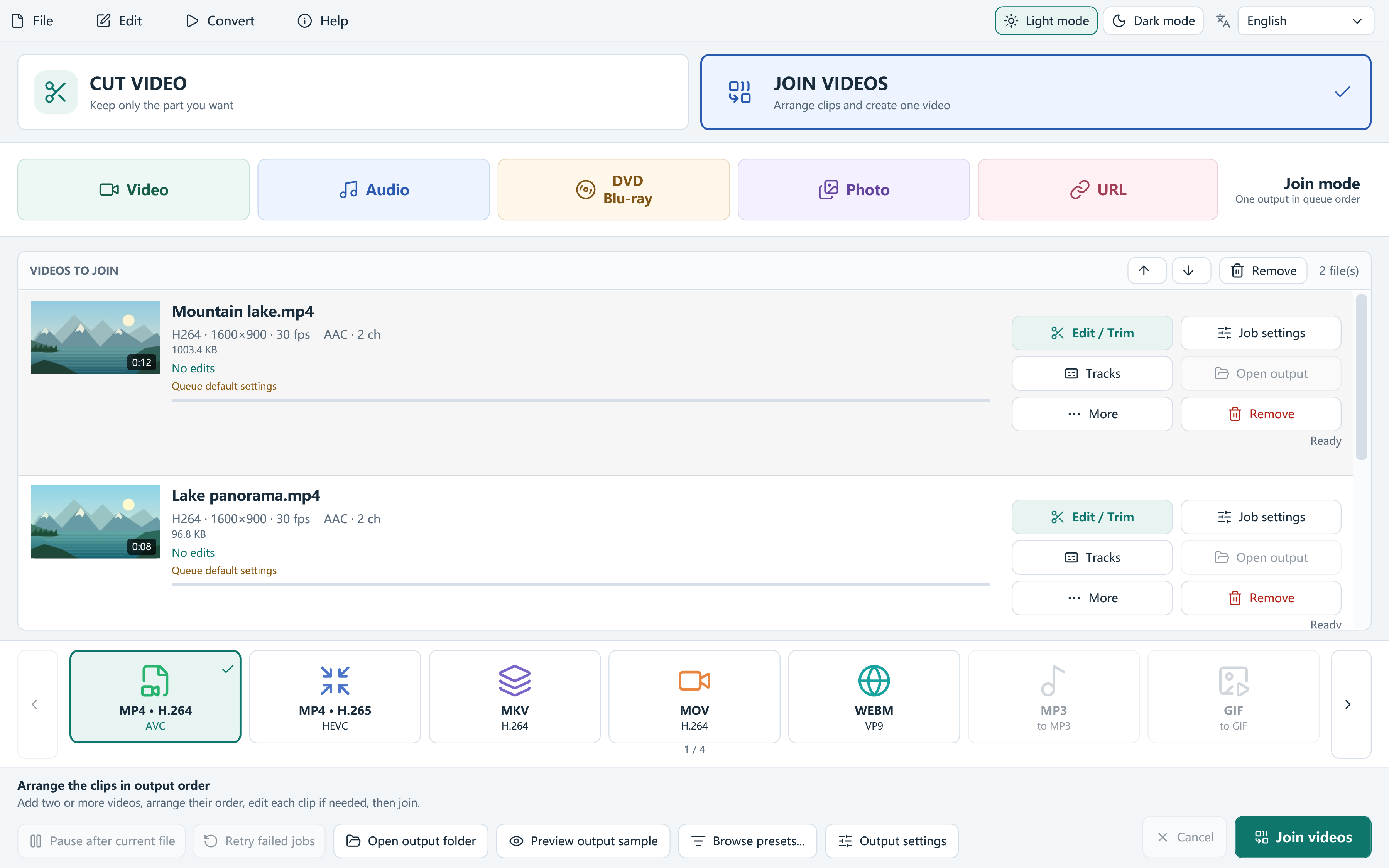
Open Join Videos, add only the two exported files and place the opening clip first. Choose MP4 and save to a new filename. Auto can use stream copying when the clips are compatible. If the app reports the clips are incompatible under Lossless only, use Auto or re-encoding and check the common output settings before exporting.
Watch the cut and keep the source
The example has about 45 seconds of material. Play the finished MP4 from about 00:18 until after the cut near 00:20. Check that the pause is gone and the next scene starts with the right sound. If the wrong scene comes first, fix the queue order. If the join cuts off speech, return to the original recording and adjust that keep range before joining again.
