Inspect the source before you edit
MKV is a flexible container, not a single codec. Two MKV videos can have different picture formats, dimensions, frame rates, HDR characteristics or track layouts. Open the media details and confirm what the recording actually contains.
Play the intended audio language and check whether subtitles are selectable or already burned into the picture. Burned text is part of the image; a selectable subtitle is a separate stream that needs support from the output container and receiving player.
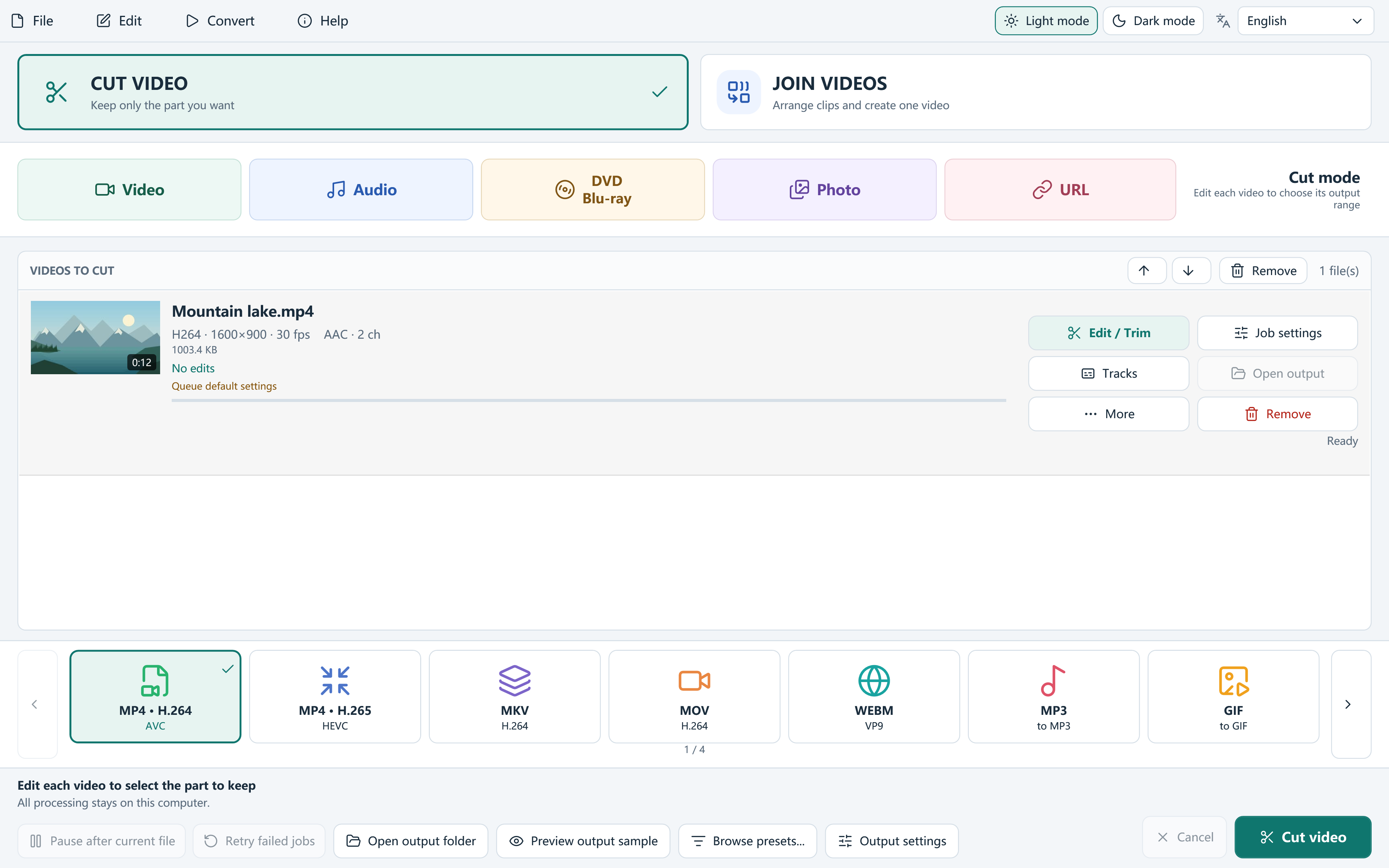
Cut an MKV to the section you need
For a precise excerpt, use Cut mode and the current trim editor. There is no separate Smart Cut trimming switch in version 8.1.0, and an exact cut normally uses an encoded output.
- Choose Cut video and add the MKV file.
- Set the retained start and end in Edit / Trim. Use frame stepping and playback to check the picture and sound at both boundaries.
- Add keep segments if you need several useful sections instead of one continuous excerpt.
- Review the selected audio and subtitle choices, apply the edit, and choose the final output in the main window.
- Process to a new file, then verify the language, subtitles, boundaries and duration.
Join MKV sources with a realistic strategy
Choose Join videos, add at least two sources, and arrange them in queue order. Edit individual files before joining when their openings, endings or pictures need work. A consistent encoded result is the general choice when the sources differ or edits require encoding.
Compatible lossless joining needs an MP4, MOV or MKV output whose selected streams match the sources. The input extension alone is not the test. Keep source dimensions and frame rate; trims, keep segments, picture or audio processing, a watermark, burned subtitles and source chapter timelines require encoding. Check the actual compatibility decision.
Decide what viewers should hear and read
Check audio selection for every source rather than assuming that the first track always means the same language. Review the language and title metadata you change. After a join, listen across each boundary and near the end to catch missing tracks or synchronization problems.
Choose between a supported selectable subtitle track and subtitles burned into the video. Burning needs encoding and makes the text part of the picture. Selectable subtitles remain dependent on container and player support. Verify them in the destination player, not only in the editor. External editable subtitle files cannot be joined directly: convert the clips first or burn their subtitles before joining. Existing embedded-track preservation depends on compatible layouts.
Know the limits of copying a container
A single-source MKV Remux preset can copy compatible streams without picture editing, but it is a separate task from joining or making exact edits. Do not assume it preserves every attachment or every container-specific feature of any MKV file.
Save a project for revisions, retain the original media, and check the full exported result. Local video processing stays on your PC and does not add a compulsory product watermark.
Questions, answered
Will every audio track and subtitle automatically survive?
Do not assume so. Review track selection, output-container support and the receiving player, then verify the actual export.
Why can two MKV files fail a lossless join?
Their codecs, dimensions, frame rates, HDR or track layouts may differ. Applied edits can also require encoding.
