Use an order that avoids repeated exports
Choose the content first, then the composition, then the audio and subtitles. Finally choose the output settings. Making these decisions in one project avoids repeatedly compressing an already exported file after each small change.
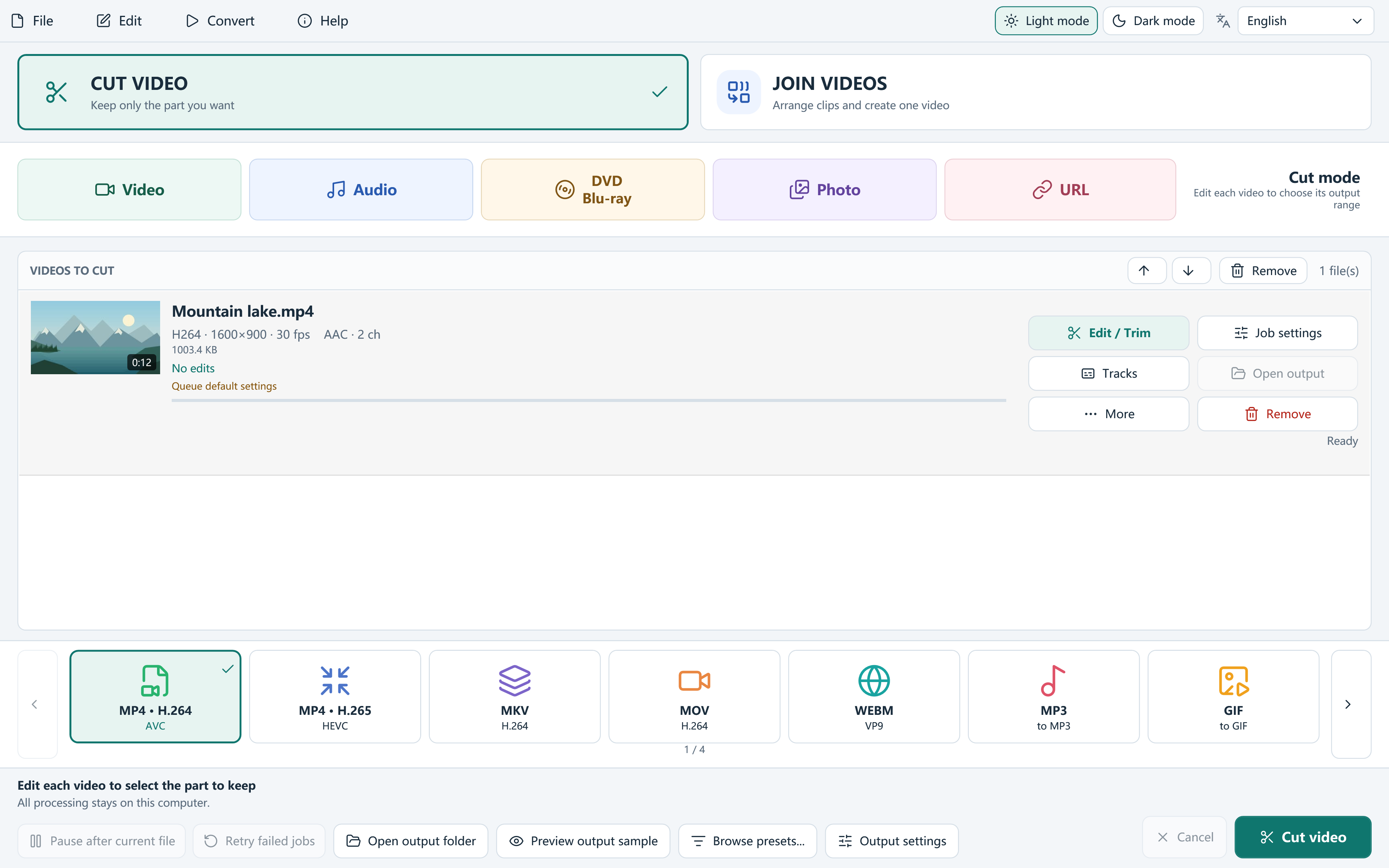
For one source, choose Cut video and open Edit / Trim. For a joined project, choose Join videos, arrange the queue, and edit each source that needs changes. Keep the originals available and save a project if the work will need review.
Crop the picture deliberately
Use the visual crop controls to mark the area to retain and review the composition in the preview. Aspect-ratio choices can help when you need a particular shape, but the important test is whether the subject and useful details remain visible throughout the clip.
Crop and resize solve different problems. Cropping removes picture area; resizing changes the output dimensions. A smaller recording does not gain real detail when enlarged. Check faces, captions and screen recordings at the edges before applying a tight crop.
Correct rotation and framing
Rotate a sideways source or flip it when the intended presentation requires that change. Check the full picture after rotation, because the frame proportions may change and the eventual output canvas still needs a deliberate choice.
Apply picture effects only when they help the actual material. Inspect a representative bright and dark moment rather than judging the whole source from one paused frame. The processed picture is encoded into the selected output.
Choose audio and subtitles for the viewer
Select the intended audio track and review any language, title, gain or loudness settings you change. In a join, inspect each source independently so that track numbers do not accidentally switch the result to another language or commentary.
External SRT, ASS, SSA and VTT files can be burned into video or embedded in compatible MKV, MP4 or MOV outputs. Burned text becomes part of the image and needs encoding. External editable subtitle files cannot be joined directly; convert clips first or burn subtitles before joining.
Check the subtitle timing, line breaks and readability in a representative part of the export. A subtitle file existing beside the source does not by itself prove that the final output contains the text.
Add a watermark only when you want one
The application does not force a product watermark onto your export. You can deliberately add your own PNG logo or image, adjust its size and opacity, and position it over the picture. Keep it clear of useful content and subtitles, and preview against both light and dark scenes.
Cropping, rotation, effects, a watermark and burned subtitles generally require an encoded output. They are not compatible with a promise to copy every original compressed picture unchanged. Select codec, quality, dimensions and destination after reviewing the edits.
Review one complete output
Start processing to a new file. Watch the opening, edited boundaries and ending, then verify composition, orientation, audio language and subtitle behavior in the receiving player. Keep the project and sources until that check is complete.
Normal editing of local videos is processed on your PC. Online-source lookup or download is a separate network operation, so do not confuse a local media-processing workflow with a promise that every feature works without internet access.
Questions, answered
Can I add subtitles without making them permanent?
Use a supported selectable subtitle output when the container and destination player support it. Burned subtitles become part of the picture.
Can I crop without encoding a new picture?
A crop changes the visible image and normally needs encoding. Choose quality settings suited to the source and destination.
