Compressed video depends on nearby frames
Many video codecs store a complete reference picture at intervals and describe other pictures using information from nearby frames. A keyframe is therefore a convenient place to start copying an existing compressed stream. An arbitrary frame may depend on pictures that are outside the section you want.
Stream copying avoids decoding and re-encoding the picture. It can preserve the original compressed data, but arbitrary trim boundaries, container requirements and timestamps complicate the job. A tool may begin at an earlier usable boundary, or impose restrictions on which cuts are possible.
What exact-frame encoding does differently
An encoded trim decodes the source around the requested boundary and creates a new video from the retained content. That gives the exporter the information it needs to start a new output at the chosen visual point and apply crop, rotation, subtitles or other picture changes.
Encoding takes work and creates a new compressed result. The visible quality depends on the codec and output settings. Choosing the same dimensions or extension as the source does not by itself make that result a byte-for-byte copy.
What version 8.1.0 actually offers
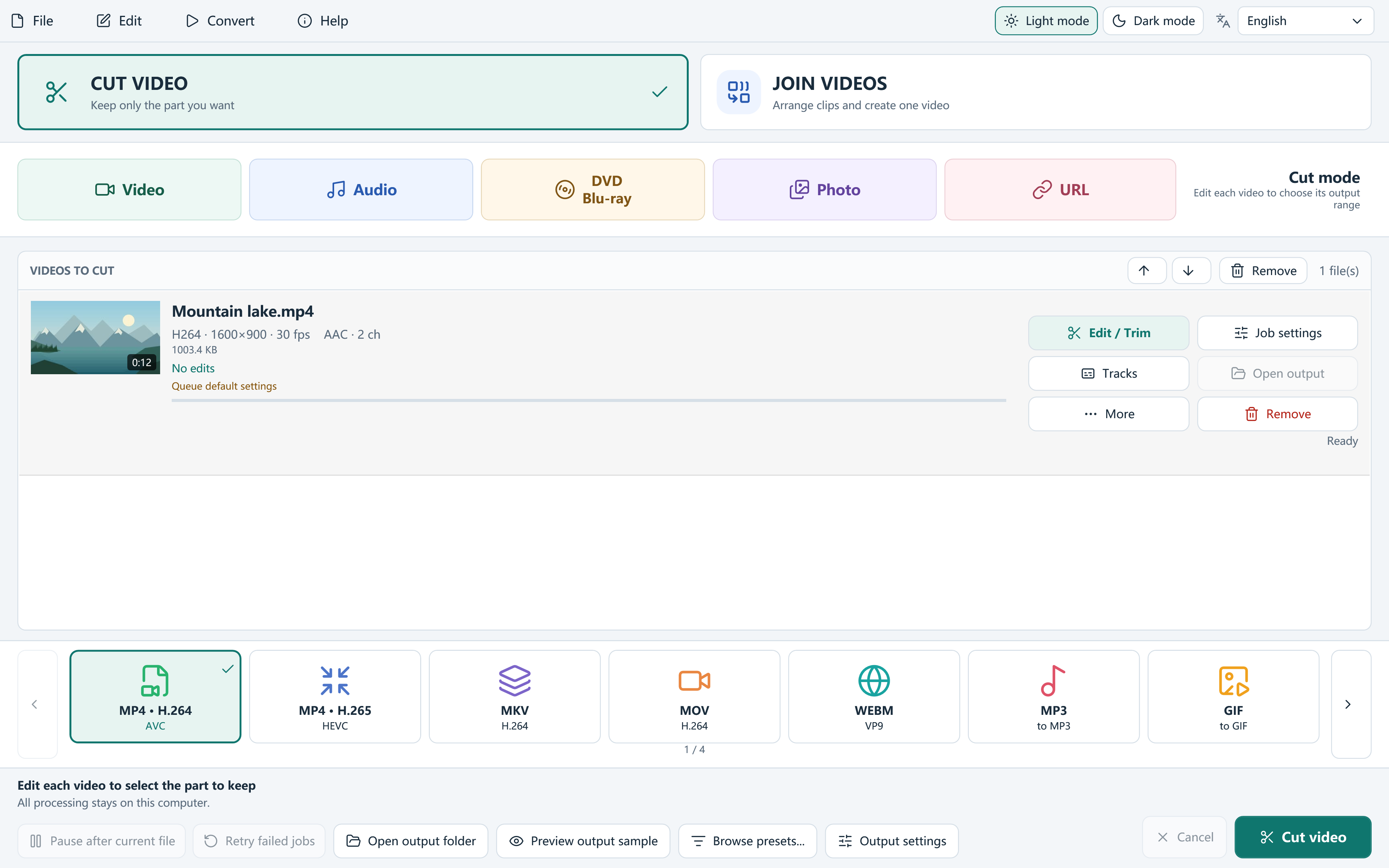
Free Video Cutter Joiner 8.1.0 does not expose the old standalone Smart Cut trimming switch. Use Cut video and the current Edit / Trim controls for precise boundaries and keep segments, then select an encoded output in the main window.
Compatible lossless joining is available as a separate join strategy. It copies suitable matching streams into an MP4, MOV or MKV output when the selected codecs, dimensions, frame rate and track layout allow it. The input filename extension alone does not decide compatibility. Edits that require encoding, or source chapter timelines, rule out this copy path.
Remux is another distinct operation: it copies compatible streams into a different container for a single source, with restrictions on edits. It is not a replacement for exact trimming or a general Join mode.
A practical choice for your task
Choose an encoded output when the selected frame matters, when you keep several edited sections, or when the sources need a consistent frame size and frame rate. It is also necessary for picture changes such as a crop or burned subtitles.
Consider compatible lossless joining only when the sources already match and no incompatible edits are applied. If Lossless only rejects a project, inspect the reason or choose an encoded strategy. Forcing a stream copy does not make mismatched streams compatible.
- Define the visual start and end you actually need.
- Choose an output method that supports the edits and sources.
- Export to a new file and check the boundaries with sound.
- Keep the original and the project until the result has been verified.
Treat “Smart Cut” as a feature name, not a universal standard
Different applications may use Smart Cut to mean keyframe copying, partial re-encoding, or another optimization. A technique available in one editor is not proof that another editor exposes the same control. Follow the capabilities of the installed version rather than an old screenshot or a generic promise.
A dependable result starts with the intended edit and ends with checking the actual output. Do not choose a less suitable method solely because its label sounds faster or lossless.
Questions, answered
Is there a Smart Cut button in Free Video Cutter Joiner 8.1.0?
No separate Smart Cut trimming switch is available. Use the precise trim editor and select a suitable encoded output.
Is frame-accurate output lossless?
Not necessarily. A precise encoded trim creates new compressed video; the selected quality settings determine the result.
