When a local Windows editor fits
Local editing is useful when your recordings are already on the PC, uploads would be inconvenient, or the material should not be sent to a web editing service. Large recordings and a collection of source clips can be easier to organize alongside a saved local project.
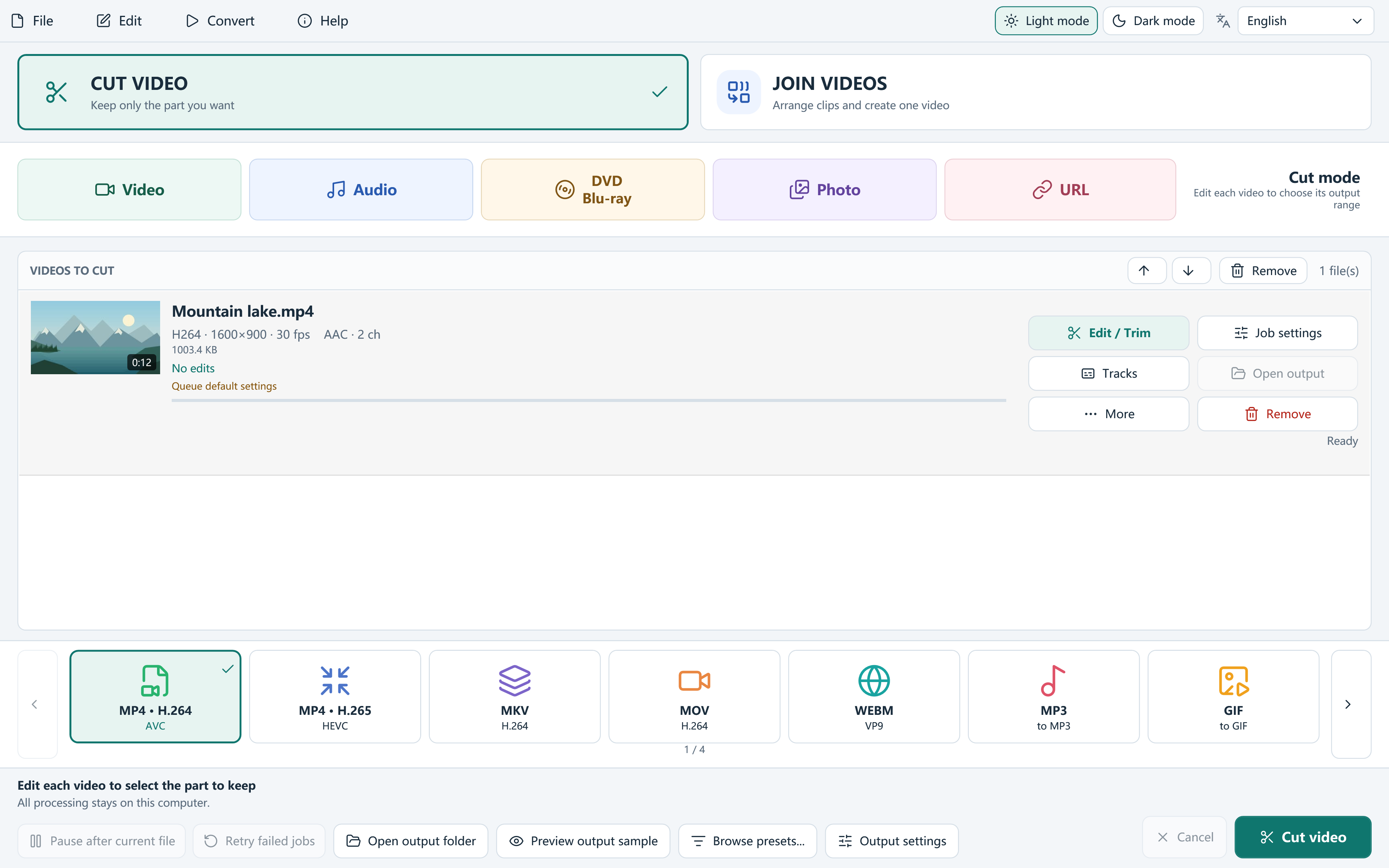
Free Video Cutter Joiner processes ordinary local cuts and joins on your PC. Its main choices are Cut video and Join videos, with a trim editor, keep segments and a visible source queue. The final output format is selected in the main window after sources are added.
When an online editor can be convenient
A web tool may fit a short clip on a device where installing a Windows application is impractical. Collaboration or a service-specific publishing workflow may also matter more than local processing. Check the individual service's supported inputs, output limits, watermark rules and privacy policy.
An upload and a later download can add time, but a local export also needs computing work. Neither approach is automatically faster. Source size, network connection, codec, output settings and the machine or service doing the encoding all affect the result.
A practical local cutting or joining workflow
Keep the original media until the output has been reviewed. Choose the task first rather than making temporary conversions without a clear destination.
- Use Cut video for one recording or Join videos for a sequence of at least two videos.
- Set trim boundaries or keep segments, and arrange separate sources in the intended queue order.
- Review crop, orientation, audio and subtitles only where the project needs changes.
- Choose an output preset and quality that suit the receiving player or device.
- Process to a new file, check the entire result, and save the project for revisions.
Do not confuse local media processing with zero network activity
The editor does not upload ordinary local videos for processing. Online-source features are different: looking up a link can retrieve metadata and a thumbnail, and processing that source downloads the selected media before the edit or conversion.
Downloader update checks and missing-runtime installation also use the internet. Setup presents an optional RelevantKnowledge offer with its own consent and privacy information. Local processing is a specific behavior, not a substitute for understanding these separate network features.
Local files can still be exposed through a shared folder, automatic cloud synchronization or the way you send the final video. Review where the sources, projects, outputs and diagnostic logs are stored.
Choose based on the actual result you need
For exact cuts or mixed-source joins, expect an encoded output and choose quality deliberately. The current application has no standalone Smart Cut trimming switch. A compatible lossless join is limited to suitable matching sources without edits that require encoding.
Before committing to a long job, check one representative result in its destination player. Decide using the exported picture, sound and usability rather than labels such as offline, instant or lossless on their own.
Questions, answered
Can I edit local videos without uploading them?
Yes. Ordinary cutting and joining of local media is processed on your Windows PC.
Does every feature work without internet access?
No. Online-source lookup and download, tool-update checks and obtaining a missing runtime need network access.
